Repository navigation
Hide/de-prioritize system apps from search results (Windows 7 search behaviour) #463
Description

I think it would be helpful to hide, or assign a lower priority (via a "System Apps" category under the first search results one), to the executables considered "System apps".
As shown in the included image, what a regular is looking for is "Visual Studio Code". The results seem to prefer partial matches and non-exe to actual exe files, and I think that's a major usability problem.
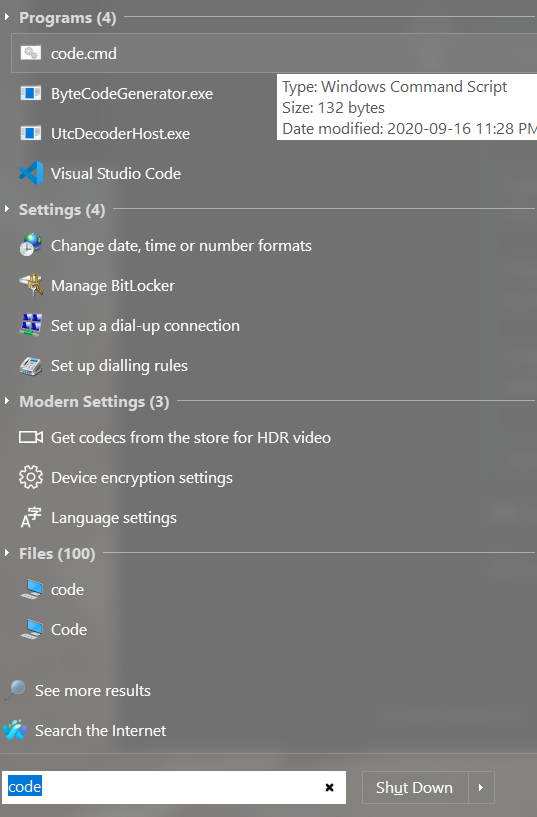
Some of those can be matched via path, some via file extension, others via preferring closer matches to partial ones.
Related issue(s): #456
Activity
ge0rdi commentedon Sep 22, 2020
Do you have
Track frequency of usageenabled? (Settings->Search Box)In such case Open-Shell should sort records based on your usage. So if you run
Visual Studio Codefew times, it should be shown at the top.XenHat commentedon Sep 22, 2020
Sure, but that was just an easily reproduceable example. There are many, many executables in %WINDIR% and System32 most users have no business running directly.
ge0rdi commentedon Sep 22, 2020
There are also useful programs such as
Regedit,Remote desktop connections,Paintin%WINDIR%\System32.Though I understand what do you mean.
XenHat commentedon Sep 22, 2020
Those could be whitelisted.
bonzibudd commentedon Sep 22, 2020
Here are my two cents: In Windows 7, none of the System32 .exe's would be suggested directly, unless you typed them out exactly. The only ones which would be suggested were ones with entries in either Start menu folder, which I think is a better system for most users. Additionally, I think this would be easier for most people, since most of the commonly used .exe's are only a few characters, and again, you could still type in the entry found in the Start menu folder, which would give you a suggestion.
XenHat commentedon Sep 22, 2020
I thought about suggesting this behaviour. This seems to be the best approach.
billroland commentedon Sep 23, 2020
I have a Windows 7 system that I fired up today to test side by side and I believe bonzibudd has captured the difference succinctly. What is generated as you type the letters (cmd in my case) is vastly different between Open-Shell and Windows 7, with Windows 7's approach being vastly more useful in my opinion.
NebelNidas commentedon Sep 23, 2020
I agree with most of the above, the default behavior should perhaps be changed to the Win7 one. However, I think the old behavior should still be made accessible via a toggle in the settings, for the power users who find it helpful.
XenHat commentedon Sep 23, 2020
Definitely. I meant this more as a default, or configurable behaviour, not a complete change. There's valid usage for both behaviour, although I found that the "Windows 7" behaviour is expected/desired by most non-power users.
[-]Hide/de-prioritize system apps from search results[/-][+]Hide/de-prioritize system apps from search results (Windows 7 search behaviour)[/+]bonzibudd commentedon Sep 23, 2020
I just noticed something strange with the Search options. Disabling the toggle "Search the system path" alongside "Search for keywords" seems like it may actually behave more similarly to Windows 7, so that it only shows System32 apps when typed exactly. I can't currently tell if it messes anything else up, and I don't know what about that specific combination would give those results, unless I'm misinterpreting them. Can anyone else confirm this?
XenHat commentedon Sep 23, 2020
While this is very close to desired behaviour, disabling "Search the system path" entirely isn't suitable for me as I have several utilities in my user path. I see some coding to do in that area to keep user path when disabling that option, and then an acceptable resolution would be to disable SYSTEM path searching by default :)
bonzibudd commentedon Sep 23, 2020
@XenHat Ok, I see. I didn't realize that applied to all paths, including the user's. That would probably not be a great solution for most people.
XenHat commentedon Sep 23, 2020
The code change to allow user path to stay there should be fairly trivial. I will take a look at it when I have some time.
bonzibudd commentedon Sep 23, 2020
Maybe I'm misunderstanding you, but wouldn't it be better if it was the other way around? Instead of only allowing user paths, I think it would be better to only disallow System32.
XenHat commentedon Sep 23, 2020
We are saying the same thing, I believe.
To keep the functionality as it is implemented right now, we need to keep the "search system path" setting around.
Disabling this setting, however, breaks user path searching, which I use and rely on.
What I am saying is, a code change to keep USER path in search pool while disabling system path search (as the name would suggest it does), would fix this issue.
We can then turn that feature off by default, and have a better out of the box behaviour.
bonzibudd commentedon Sep 23, 2020
Ok, I understand now. That would certainly be a better user experience.
billroland commentedon Sep 23, 2020
I noted that setting and experimented with it too, but I don't think its particularly useful. For one thing, to match "CMD" would now require appending ".exe" while it doesn't in Windows 7. Also, I still launches the wrong program at times.
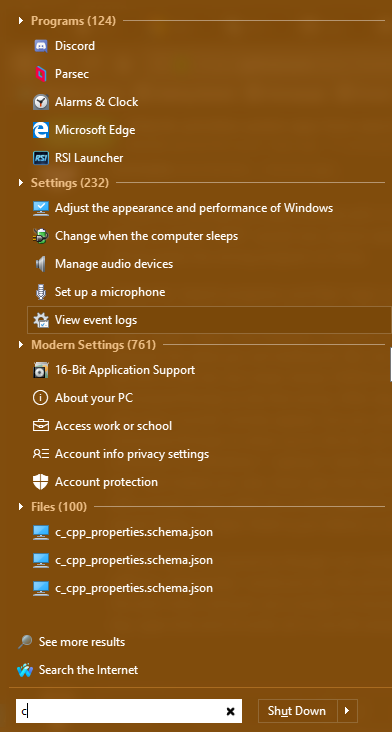
I think the "search programs and files" logic is either deeply flawed or it is intended to be distinctly different than the native functionality in Windows 7/Vista. For one thing it appears as soon as you type a letter, Open-Shell displays a long list of entries, much of which has nothing at all in common for what you are looking for (for me, typing C brings "Remote Desktop Connection" to the first of the list, but never shows CMD/Command Prompt. Why? On Windows 7 C shows Command Prompt as the first entry). After about half a second or so, much of that list disappears and more "correct" entries appear, but you either have to at least enter CM or Comm to get Command Prompt to show up on the list. So it appears to start off with a cached list of stuff somehow. On Windows 7, typing C never shows Remote Desktop Connection anywhere in the list, ever, and indeed you also never get that big list of seemingly cached stuff, so instead you start off with a much more useful list of stuff based on what you're searching for. My impression is the search facility in Open-Shell is just inferior to the one in the native Windows 7 Start menu.
I hope it does not sound as though I am complaining, I was just surprised that the behavior is so different. Admittedly I could just pin the command prompt, calculator, and other couple of apps to the start menu and just use a couple of mouse clicks, but its just force of habit to hit the Windows key, type cmd and hit enter all in one fell swoop.
XenHat commentedon Sep 24, 2020
With the path search disabled, this is my result: